
 today deals
 special offer


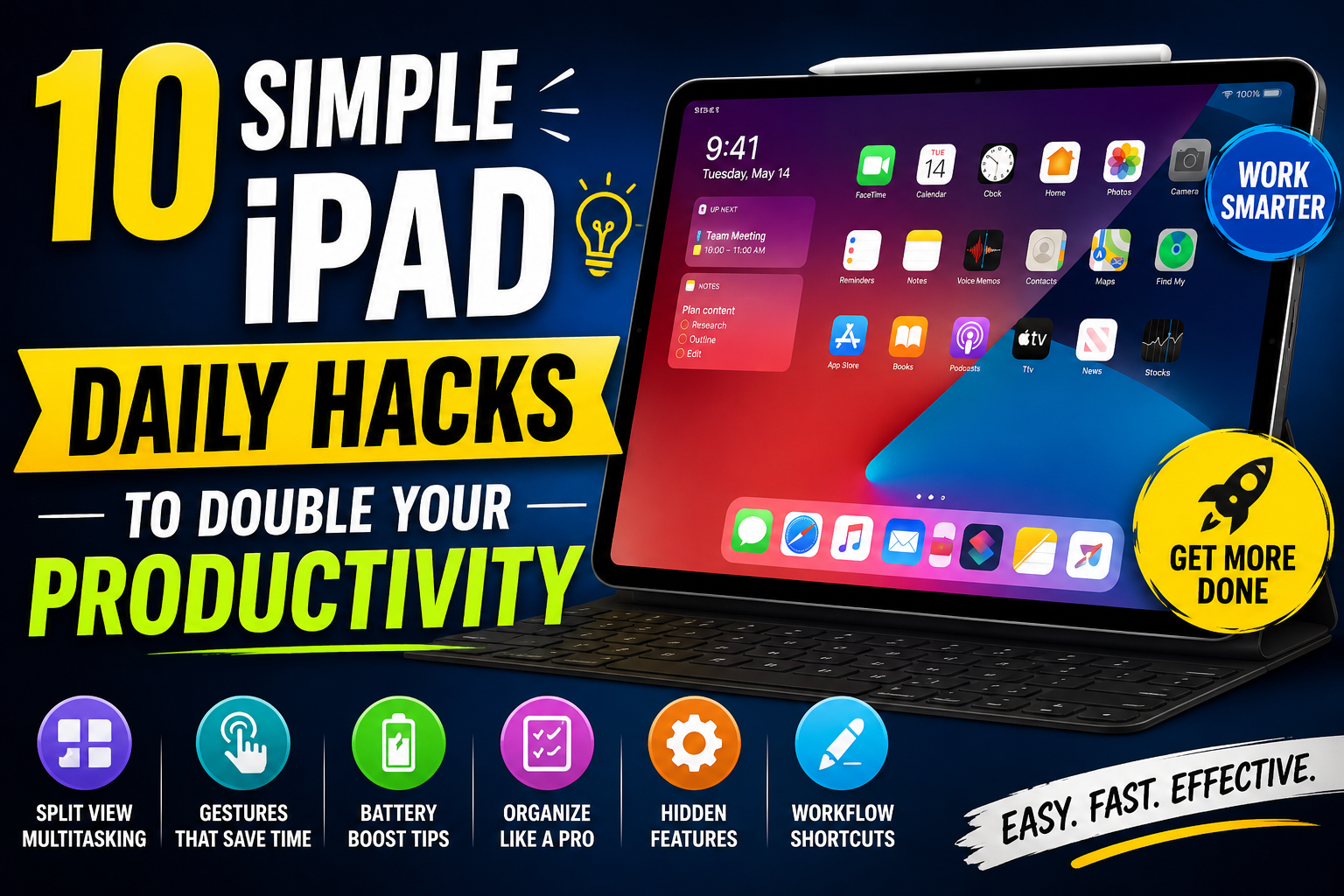
Your iPad is far more than just a large screen for watching videos or scrolling social media. Packed with intuitive iPadOS features, it can transform into an efficient digital notebook, a laptop replacement, or a powerful multitasking workstation.
Whether you’re using a base-model iPad, an iPad Air, or an iPad Pro, these 10 simple daily hacks will save you time and streamline your routine.
1. Drag to Split Screen (Multitasking Made Easy)
The Problem: Switching back and forth between two apps wastes time.
The Simple Hack: Use Split View to run two apps side-by-side.
- Open any primary app (e.g., Safari).
- Tap the three dots (
...) at the top center of the display. - Select Split View (the half-filled rectangle icon).
- Select a second app from your Home Screen or Dock (e.g., Notes).
- Drag the middle divider line left or right to adjust window sizes.
2. Swipe from the Corner for Quick Notes
The Problem: You need to jot down an idea or phone number fast before you forget it.
The Simple Hack: Trigger a instant Quick Note from anywhere on your iPad screen.
- Take your finger or Apple Pencil and swipe inward from the bottom-right corner of the screen.
- A floating notepad window will immediately pop up.
- Type or draw your note, then tap Done to automatically save it in Apple Notes.
3. Instant Screenshot & Annotation
The Problem: Taking a screenshot with physical buttons can feel awkward.
The Simple Hack: Use a quick gesture for instant markup.
- Swipe diagonally inward from the bottom-left corner using your Apple Pencil or finger.
- Your iPad will snap a screenshot and instantly open markup controls.
- Circle text, add arrows, or sign a document, then tap Done > Save to Photos or Files.
4. Turn Your iPad into a Trackpad
The Problem: Editing long paragraphs of text with touch can be frustrating.
The Simple Hack: Convert your onscreen keyboard into a precision cursor.
- Open any text field so the virtual keyboard appears.
- Touch and hold the Spacebar with one finger until the letters fade away.
- Drag your finger across the keyboard area—the cursor will now slide smoothly across your document like a trackpad!
5. Drag and Drop Content Between Apps
The Problem: Copying images or text across multiple apps usually requires several steps.
The Simple Hack: Use multi-touch to drag images and links across windows.
- Open two apps in Split View (e.g., Photos and Photos/Notes).
- Tap and hold an image or text selection until it lifts off the screen.
- Drag it across the divider and drop it straight into your email or document.
6. Scan Documents Directly with the Camera
The Problem: You need to send a signed paper document as a PDF without a bulky scanner.
The Simple Hack: Use the built-in scanner inside the Files or Notes app.
- Open the Files app or Notes app.
- Tap the Camera icon or the
...menu at the top. - Select Scan Documents.
- Hold your iPad over the paper—it will automatically detect the borders, snap a clean scan, and save it as a high-quality PDF.
7. Convert Handwritten Notes to Typed Text
The Problem: You prefer taking notes by hand, but need clean text for emails or reports.
The Simple Hack: Use Apple Scribble to auto-convert handwriting.
- Ensure Scribble is enabled in System Settings > Apple Pencil.
- Tap inside any standard text box (in Safari, Messages, or Mail) using your Apple Pencil.
- Handwrite your text directly into the field—iPadOS instantly converts your handwriting into clean typed text.
8. Master 4 and 5-Finger Trackpad Gestures
The Problem: Navigating home screens using button presses slows down your workflow.
The Simple Hack: Use intuitive finger pinch gestures.
- Go Home: Pinch 4 or 5 fingers together on any app screen.
- Open App Switcher: Swipe up from the bottom edge and pause in the middle, or pinch 5 fingers halfway.
- Switch Between Apps: Swipe left or right near the bottom bar using 4 fingers.
9. Enable Background Sounds for Focus
The Problem: Distractions, ambient noise, or quiet rooms make it hard to focus while working.
The Simple Hack: Play built-in white noise without downloading extra apps.
- Go to Settings > Accessibility > Audio & Visual > Background Sounds.
- Toggle Background Sounds to ON.
- Choose from ambient sounds like Rain, Ocean, Dark Noise, or Stream to block out distractions while reading or studying.
10. Turn On Scribble/Drawing Straight Lines
The Problem: Drawing perfect shapes or straight arrows by hand is difficult.
The Simple Hack: Shape recognition auto-corrects hand-drawn figures.
- Draw any shape (a circle, square, arrow, or star) in the Notes app using your finger or Apple Pencil.
- Hold your pencil tip still at the end of the stroke without lifting it off the display.
- The rough line will automatically snap into a crisp, geometrically perfect shape!
Featured Product Spotlight: Elevate Your iPad Setup
Get the absolute most out of these iPad hacks with our top-rated workspace accessories:
- Paper-Feel Screen Protectors: Give your Apple Pencil a natural matte paper texture for precise note-taking and drawing.
- Adjustable Magnetic Desktop Stands: Position your iPad at eye-level to turn your tablet into an ergonomic dual-monitor workstation.
- Smart Keyboard Cases: Transform your iPad into a lightweight laptop alternative with responsive keys and built-in trackpads.
👉 [Shop Our Complete iPad Accessories Collection] (Internal Link Placeholder)
Frequently Asked Questions (FAQ)
Which iPads support Split View multitasking?
Most modern iPads—including iPad (5th gen or newer), iPad mini (4th gen or newer), iPad Air (2nd gen or newer), and all iPad Pro models—support Split View multitasking on modern iPadOS versions.
How do I turn off Quick Notes if I trigger it accidentally?
If you frequently trigger Quick Notes by accident while drawing or scrolling, go to Settings > Apple Pencil (or General > Gestures) and change or disable the Bottom Right Corner Swipe action.
Will using background sounds or multitasking drain battery faster?
Heavy multitasking with bright displays consumes slightly more battery power. However, built-in features like Background Sounds use very minimal CPU energy and have an imperceptible impact on overall battery life.
Ready to Work Smarter on Your iPad?
By incorporating just two or three of these simple daily hacks into your routine, you can save hours every week and unlock the true potential of iPadOS.
Looking to build a complete productivity rig? Check out our range of [iPad Keyboards, Stylus Pens, & Ergonomic Stands] to upgrade your setup today!



Leave a Reply