
 today deals
 special offer


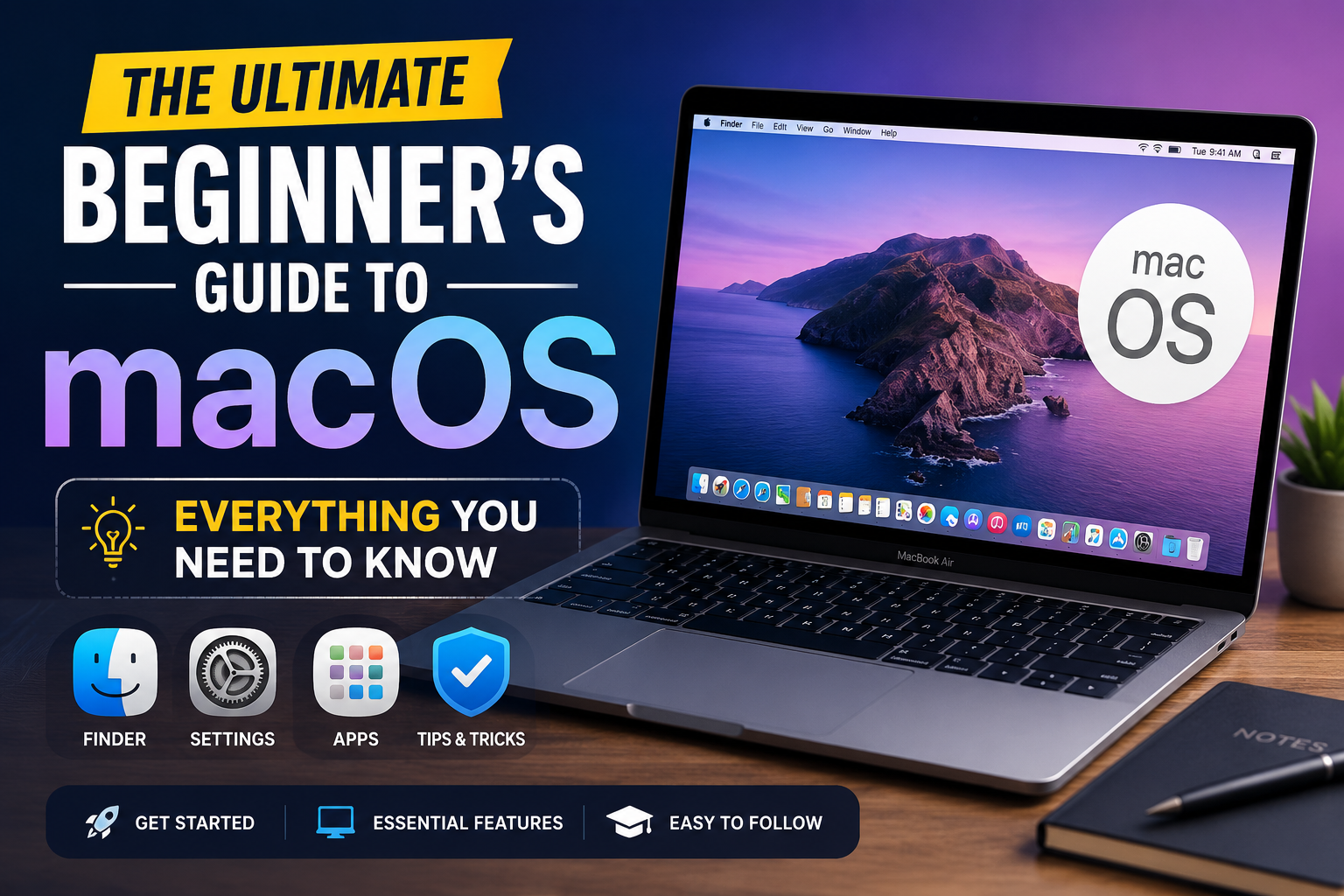
Switching to a new operating system can feel like learning a whole new language. If you just unboxed your first MacBook Air, MacBook Pro, or Mac mini, welcoming yourself to Apple’s ecosystem comes with an initial learning curve—especially if you’re making the jump from Windows.
The good news? macOS is designed to be intuitive, fast, and remarkably user-friendly. Once you learn a few core layout features and essential shortcuts, you’ll be navigating your Mac with effortless speed.
In this ultimate guide, we’ll break down the desktop interface, translate Windows terminology into Mac equivalents, share crucial shortcuts, and show you how to optimize your setup for maximum productivity.
1. Anatomy of the macOS Interface
Before diving into files and apps, let’s get familiar with the four main visual pillars of your Mac screen.
The Menu Bar (Top of Screen)
Unlike Windows, where app controls live inside individual windows, macOS uses a global Menu Bar anchored at the very top of your display.
- The Apple Logo ($\mathbf{\ Apple\ }$): Your central hub for System Settings, restarting, shutting down, and checking “About This Mac.”
- App-Specific Menus: The active app determines what appears next to the Apple menu (e.g., File, Edit, View).
- Control Center & Status Icons (Right Side): Quick access to Wi-Fi, Bluetooth, volume, display brightness, and search.
The Dock (Bottom of Screen)
The Dock provides instant access to your most frequently used applications, active apps (indicated by a small dot underneath), downloaded files, and the Trash.
Pro Tip: Drag any app icon to the left side of the divider line on the Dock to keep it permanently pinned for easy access.
Finder: Your File Manager
Represented by the blue smiling face on your Dock, Finder is where all your documents, downloads, desktop items, and cloud files reside.
Spotlight Search: The Master Search Tool
Press Cmd + Spacebar to open Spotlight. It’s the fastest way to open apps, search for documents, perform unit conversions, solve math equations, or check the weather without touching your mouse.
2. Switching from Windows to Mac? Read This First
If your muscle memory is trained on Windows, these quick translations will prevent frustration during your first week:
| Windows Term | macOS Equivalent | Function |
| File Explorer | Finder | File & folder navigation |
| Control Panel | System Settings | System preferences & security |
Control Key (Ctrl) | Command Key (Cmd ⌘) | Primary modifier key for shortcuts |
| Alt Key | Option Key (⌥) | Secondary modifier for special characters |
| Task Manager | Activity Monitor | Process management & resource usage |
| Delete Key | Backspace / Cmd + Delete | Moving files to Trash |
3. Top 10 macOS Keyboard Shortcuts Every Beginner Needs
Mastering keyboard shortcuts is the secret to getting things done fast on Mac. Save this cheat sheet:
Cmd + C— CopyCmd + V— PasteCmd + Z— UndoCmd + Spacebar— Open Spotlight SearchCmd + Tab— Switch between open applicationsCmd + Shift + 4— Take a selective screenshotCmd + Shift + 5— Open screen recording and advanced screenshot toolsCmd + W— Close the active windowCmd + Q— Quit the entire applicationCmd + Option + Esc— Force Quit an unresponsive application
1.Sign in with your Apple ID:Essential for sync and app installation.
Log in during setup or via System Settings to sync your iCloud contacts, passwords, notes, and photos instantly across your Apple devices.
2.Customize Trackpad Gestures:System Settings.
Trackpad”>
Enable ‘Tap to click’ and explore multi-finger swipes. Swiping up with three fingers opens Mission Control, giving you an instant bird’s-eye view of all open windows.
3.Configure Time Machine Backups:System Settings.
General > Time Machine”>
Plug in an external drive and enable Time Machine. It creates automated background backups, allowing you to restore deleted files or recover your system seamlessly.
4.Enable Night Shift or True Tone:System Settings.
Displays”>
Reduce eye strain during late-night sessions by automatically shifting display colors to warmer hues after sunset.
Shop Essential Mac Gear:
Want to transform your Mac into a full productivity workstation? Check out our curated selection of [USB-C Hubs & Docking Stations], [Ergonomic Laptop Stands], and [Protective Sleeves] to complete your setup.
Frequently Asked Questions (FAQ)
How do I right-click on a Mac?
You can right-click by pressing Control + Click, tapping the trackpad with two fingers simultaneously, or setting a secondary click corner in System Settings > Trackpad.
Can I run Windows apps on a Mac?
Yes! While many popular programs have native Mac versions, you can run Windows applications using virtualization software like Parallels Desktop or CrossOver.
Where do uninstalled apps go?
To uninstall most Mac apps, open Finder, go to your Applications folder, and drag the app icon to the Trash. Empty the Trash to complete the removal.
Leave a Reply